PM2 Cluster Mode on a VPS: ecosystem.config.js for 1–4GB Nodes (2026)
Running Node.js in production on a budget VPS (like a $5 Hetzner or DigitalOcean node) requires careful resource management. By default, Node.js runs as a single process on a single CPU core. To truly leverage your VPS hardware and ensure 99.9% uptime, you need PM2 Cluster Mode.
In this guide, we’ll configure PM2 for maximum performance while keeping your footprint small enough for “cheap” VPS tiers. After tuning PM2, use this Zero-Downtime Node.js deployment workflow to ship changes without visible downtime.
| Optimization | Recommended Value | Why? |
|---|---|---|
| Instances | 'max' |
Use all CPU cores for throughput |
| Exec Mode | 'cluster' |
Load balance without code changes |
| Max RAM | 800M |
Prevent memory leaks from freezing VPS |
| Log Rotation | pm2-logrotate |
Avoid disk bloat on 20GB nodes |
| Node Version | v22 LTS |
Better RAM management & V8 optimizations |
Why Cluster Mode?
A single Node.js instance cannot utilize multiple CPU cores. If your VPS has 2 or more vCPUs (like the Hetzner CX22), a single node app.js process leaves 50% of your compute power idle.
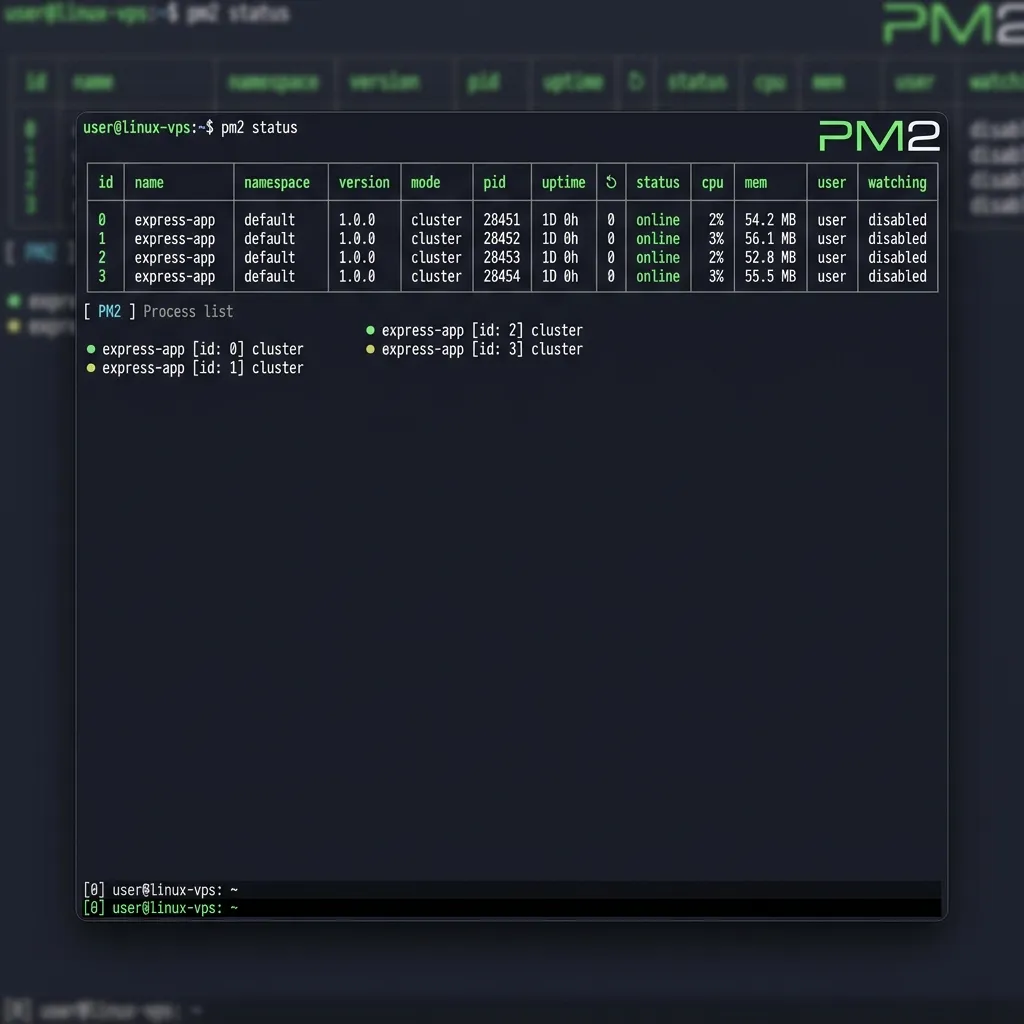
Cluster Mode allows PM2 to spawn multiple “workers” that share the same port, effectively load-balancing traffic across all available CPU cores without changing a single line of your code.
The Production Config: ecosystem.config.js
Instead of running PM2 commands manually, always use an ecosystem file. This ensures your settings are version-controlled and consistent.
Create ecosystem.config.js in your project root:
module.exports = {
  apps: [{
    name: 'nodejs-vps-app',
    script: './dist/index.js',
    // Options for High Performance
    instances: 'max',       // Spawns one worker per CPU core
    exec_mode: 'cluster',   // Enables the cluster module

    // RAM Management (Critical for Cheap VPS)
    max_memory_restart: '800M', // Restarts worker if it exceeds 800MB

    // Recovery & Uptime
    autorestart: true,
    watch: false,           // Set to false in production
    max_restarts: 10,
    restart_delay: 4000,    // Wait 4s before restarting a crashed app

    // Environment Variables
    env_production: {
      NODE_ENV: 'production',
      PORT: 3000
    }
  }]
};
Why max_memory_restart matters
On a VPS with only 1GB or 2GB of RAM, a single memory leak can freeze the entire OS. By setting a limit (e.g., 800M), PM2 will gracefully kill and restart a worker before it crashes the server.
Zero-Downtime Deploys
One of the biggest benefits of PM2 is the ability to update your app without dropping a single request.
Instead of pm2 restart, use:
pm2 reload ecosystem.config.jsHow it works: PM2 restarts workers one by one. It waits for a new worker to be “online” before killing the old one. If your app is in Cluster Mode, your users will never see a 502 error during a deploy.
Monitoring and Log Management
1. Real-time Dashboard
Run pm2 monit on your server to see a real-time terminal dashboard of CPU and RAM usage per worker. If you see one worker constantly hitting 100% CPU, it’s time to scale your VPS or optimize your event loop.
2. Avoiding Disk Bloat
Logs can quickly fill up a small 20GB VPS disk. Install the logrotate module immediately:
pm2 install pm2-logrotateThis automatically compresses and rotates your logs, keeping only the last few MBs.
How Many Node.js Apps Can I Deploy on a 2-Core 1GB VPS with PM2?
This is the most common question for developers on entry-tier cloud nodes (Hetzner CX11, DigitalOcean Basic 1GB, Vultr Cloud Compute 1GB). The short answer: 2–3 small apps, or 1 app in full cluster mode. Here’s the math.
Memory Budget on a 1GB VPS
The OS and PM2 daemon consume RAM before your app even starts:
| Component | RAM Used |
|---|---|
| Ubuntu 22.04 (minimal) | ~180MB |
| PM2 daemon | ~30MB |
| Available for apps | ~790MB |
That 790MB is what you actually have. From there:
| App Type | Idle RAM | Under Load | Max Apps (2-core 1GB) |
|---|---|---|---|
| Simple bot / webhook | 60–90MB | ~120MB | 6–8 apps (fork mode) |
| Standard REST API (Express/Fastify) | 80–120MB | ~200MB | 2–3 apps |
| Next.js / Nuxt SSR | 350–500MB | 600MB+ | 1 app only |
| Heavy AI / Discord bot | 600MB+ | OOM risk | 1 app + swap |
Option A: One App, Full Cluster Mode (2 workers)
Use this when you have a single API that needs to use both CPU cores:
module.exports = {
  apps: [{
    name: 'my-api',
    script: './dist/index.js',
    instances: 2,          // exactly 2 workers for 2-core VPS
    exec_mode: 'cluster',
    max_memory_restart: '350M', // restart worker before it eats all RAM
    node_args: '--max-old-space-size=320',
    env_production: { NODE_ENV: 'production', PORT: 3000 }
  }]
};
With 2 workers × 350MB limit = 700MB max, leaving ~90MB headroom for the OS.
Option B: Multiple Small Apps, Fork Mode
Use this when you’re hosting 2–3 separate projects on the same VPS:
module.exports = {
  apps: [
    {
      name: 'api',
      script: './api/dist/index.js',
      instances: 1,
      exec_mode: 'fork',
      max_memory_restart: '250M',
      node_args: '--max-old-space-size=200',
    },
    {
      name: 'worker',
      script: './worker/dist/index.js',
      instances: 1,
      exec_mode: 'fork',
      max_memory_restart: '200M',
      node_args: '--max-old-space-size=160',
    }
  ]
};
Two apps × ~200MB = 400MB used, leaving ~390MB free for spikes.
Pro Tips for 2-Core 1GB Nodes
- Always add a swap file:
fallocate -l 2G /swapfile && mkswap /swapfile && swapon /swapfile. On a 1GB VPS this is not optional — it absorbs deployment spikes that would otherwise OOM-kill your app. - Use
node_args: '--max-old-space-size=N'to cap V8 heap. Without it, Node.js may claim up to 1.5GB and crash the server. - Monitor with
pm2 monit: If a worker is consistently near itsmax_memory_restartlimit, your app has a memory leak — fix the code rather than raising the limit.
Best Practices for Budget VPS
- Node.js v22 LTS: Use the current LTS version. Modern V8 engines have significantly better memory pointer compression, saving up to 20% RAM out of the box.
- Graceful Shutdown: In your code, listen for the
SIGINTsignal to close database connections before PM2 kills the process:process.on('SIGINT', () => { server.close(() => { db.disconnect(); process.exit(0); }); }); - Swap File: On a 1GB VPS, always create a 2GB swap file. It acts as a safety net for temporary RAM spikes.
Conclusion
PM2 is more than just a process manager; it’s a production-grade load balancer for your VPS. By using Cluster Mode and Memory Restarts, you can run high-traffic applications on surprisingly cheap hardware.
Next Step: Learn how to put Nginx in front of PM2 for SSL and caching in our Complete Hosting Guide.
Then implement full CI/CD rollout with health checks and fast rollback in Zero-Downtime Node.js Deployment on VPS.